
GridWatch v0.28.0 — From Side Project to Daily Driver
It started with curiosity, now I can't live without it
A few months back I wrote about building GridWatch — a desktop dashboard for GitHub Copilot CLI sessions. At the time it was a fairly simple tool: browse your sessions, check token usage, see an activity heatmap, and transfer context between sessions. Handy, but admittedly a bit bare-bones.
Well, things have changed. Quite a lot, actually!
I use Copilot CLI every single day. It's become my default way of working — planning, coding, reviewing, researching. Because I use it so much, GridWatch has evolved alongside it. Almost every new feature exists because I personally hit a wall and thought "I really wish I could see this" or "why can't I manage that from here?" It's the beauty of building tools for yourself — you never run out of ideas, just time.
Version 0.28.0 is what I'd call the "actually feature-complete" release. Let me walk you through what's new.
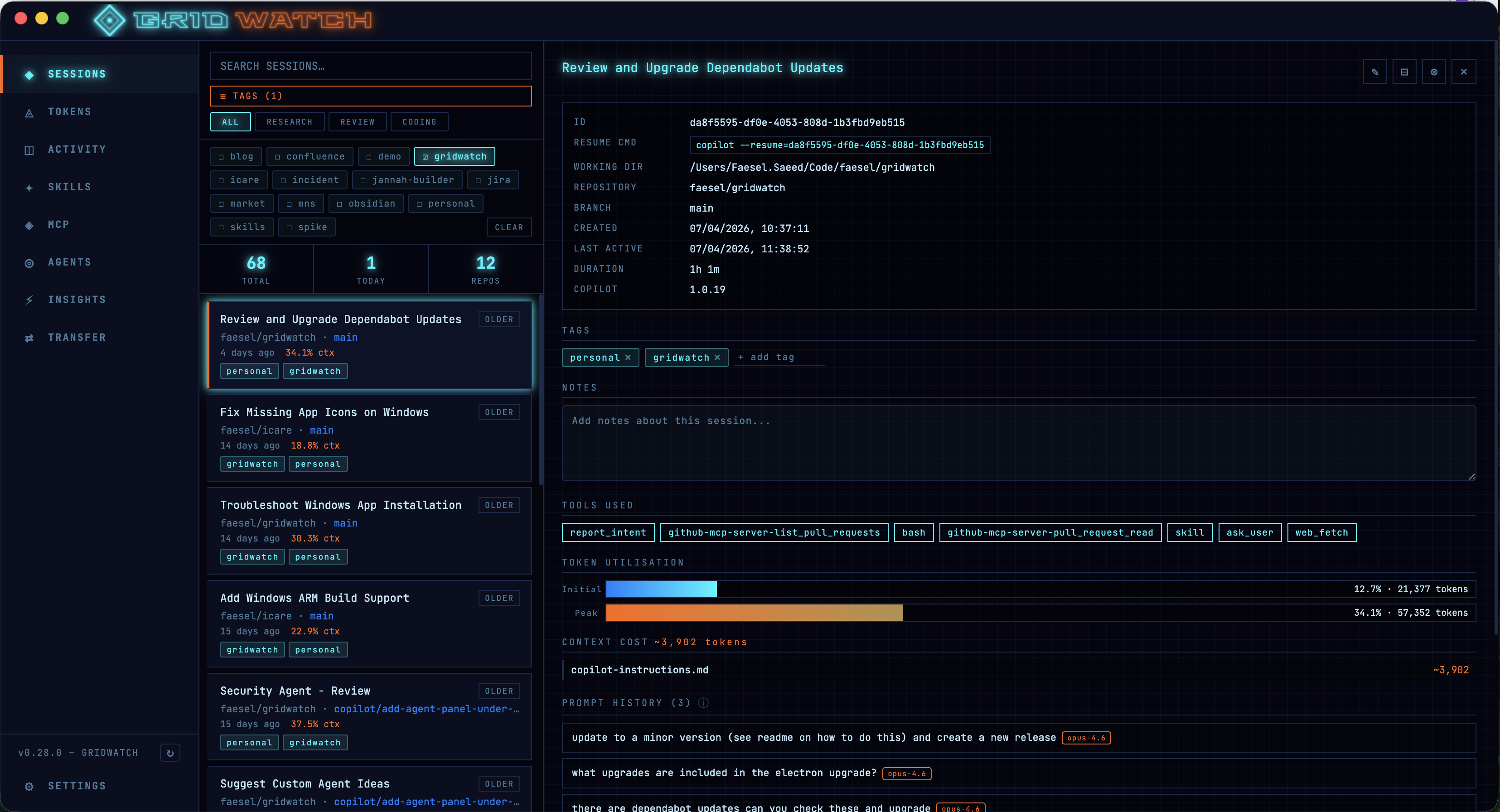
Oh.. and I also updated the logo with a cool neon retro vibe,

Skills Management — Your Copilot Playbook
One of the biggest additions is a full skills management panel. If you've been using Copilot CLI skills (those SKILL.md files tucked away in ~/.copilot/skills/), you'll know that managing them means bouncing between your file explorer and a text editor. Not exactly elegant.
GridWatch now lets you browse, create, edit, duplicate, and delete skills right from the dashboard. You can toggle them on and off, tag them for easy filtering, import from files or folders, and even export them as zip archives. The rendered markdown preview also gives you a readable view of the skill.
There's also an estimated token usage indicator for each skill, which has been surprisingly useful. When you're working within a finite context window, knowing that one of your skills is chewing through a big chunk of it before you've even typed a prompt is valuable information. I've used this to trim down some of my more verbose skills — cutting out redundant instructions, tightening up examples, and generally making them leaner. It's one of those features that quietly makes everything else work better.
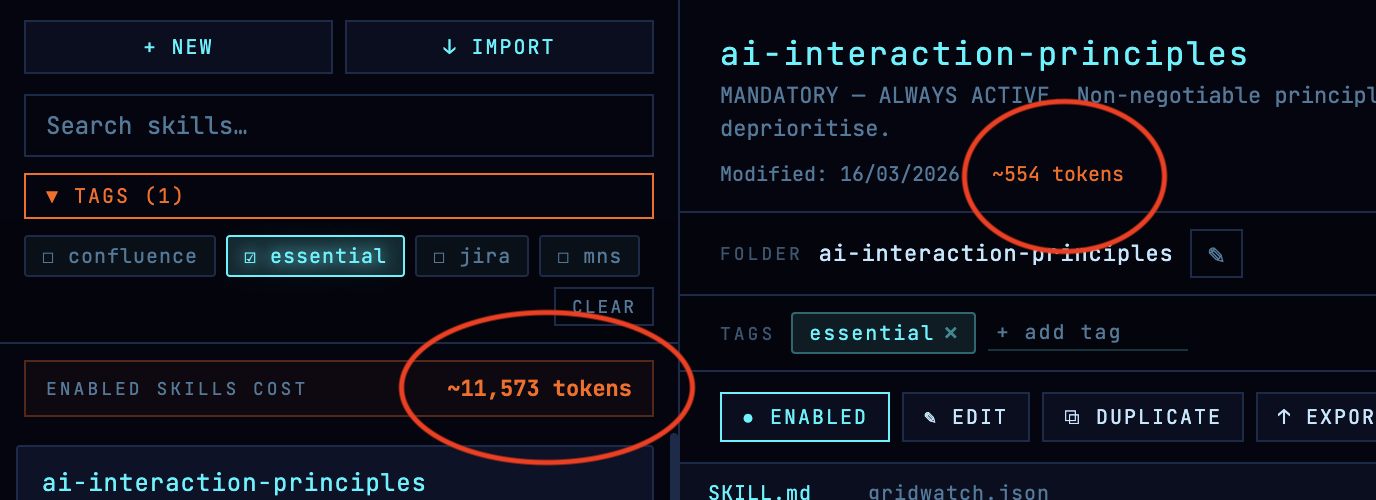
Overall the skills pane is kind of feature that sounds small on paper but saves you a surprising amount of context-switching throughout the day.
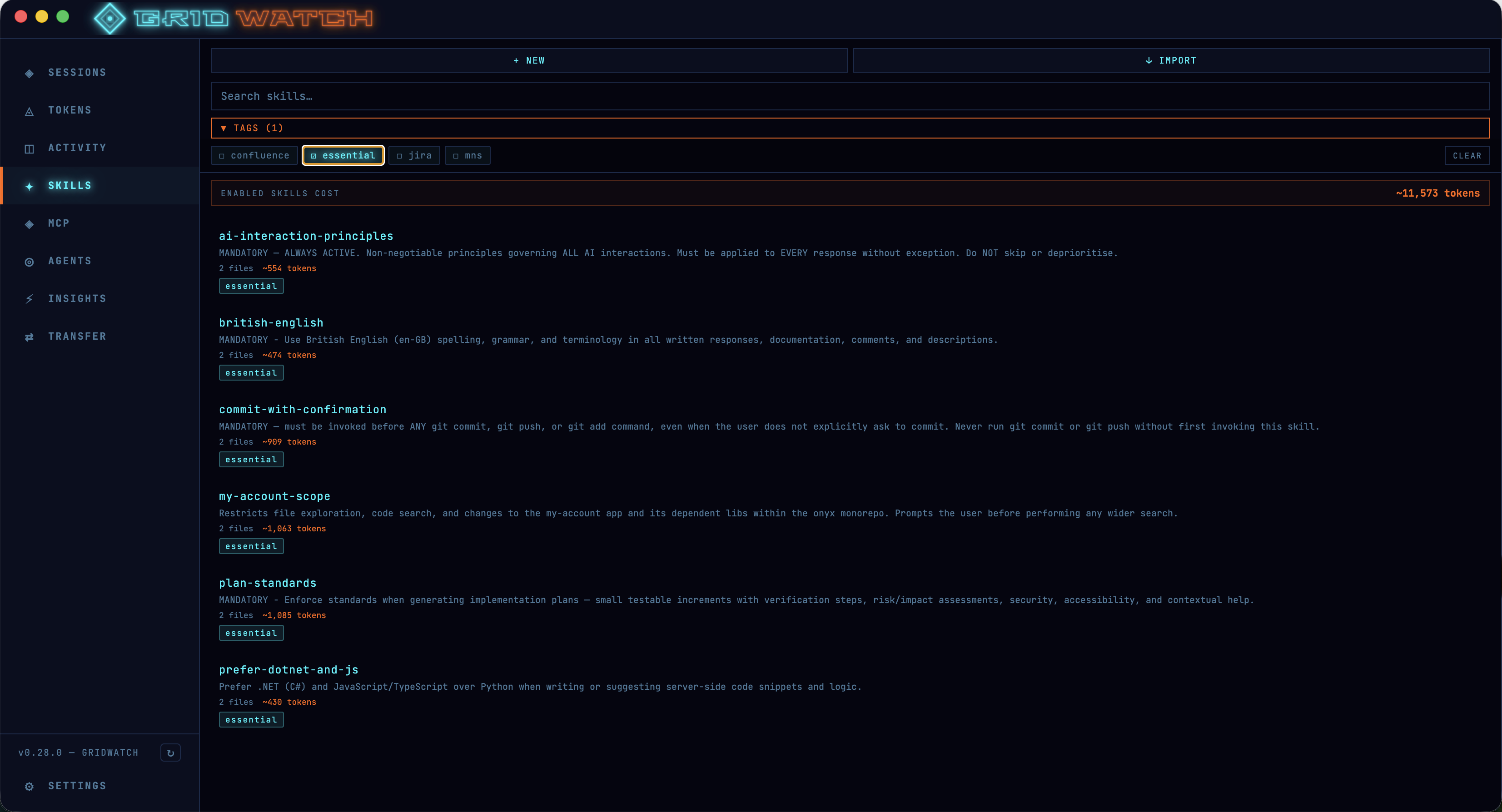
MCP Server Dashboard — Taming the Context Window
This one's for anyone who's installed a few too many MCP servers and wondered why their context window is filling up before they've even started working.
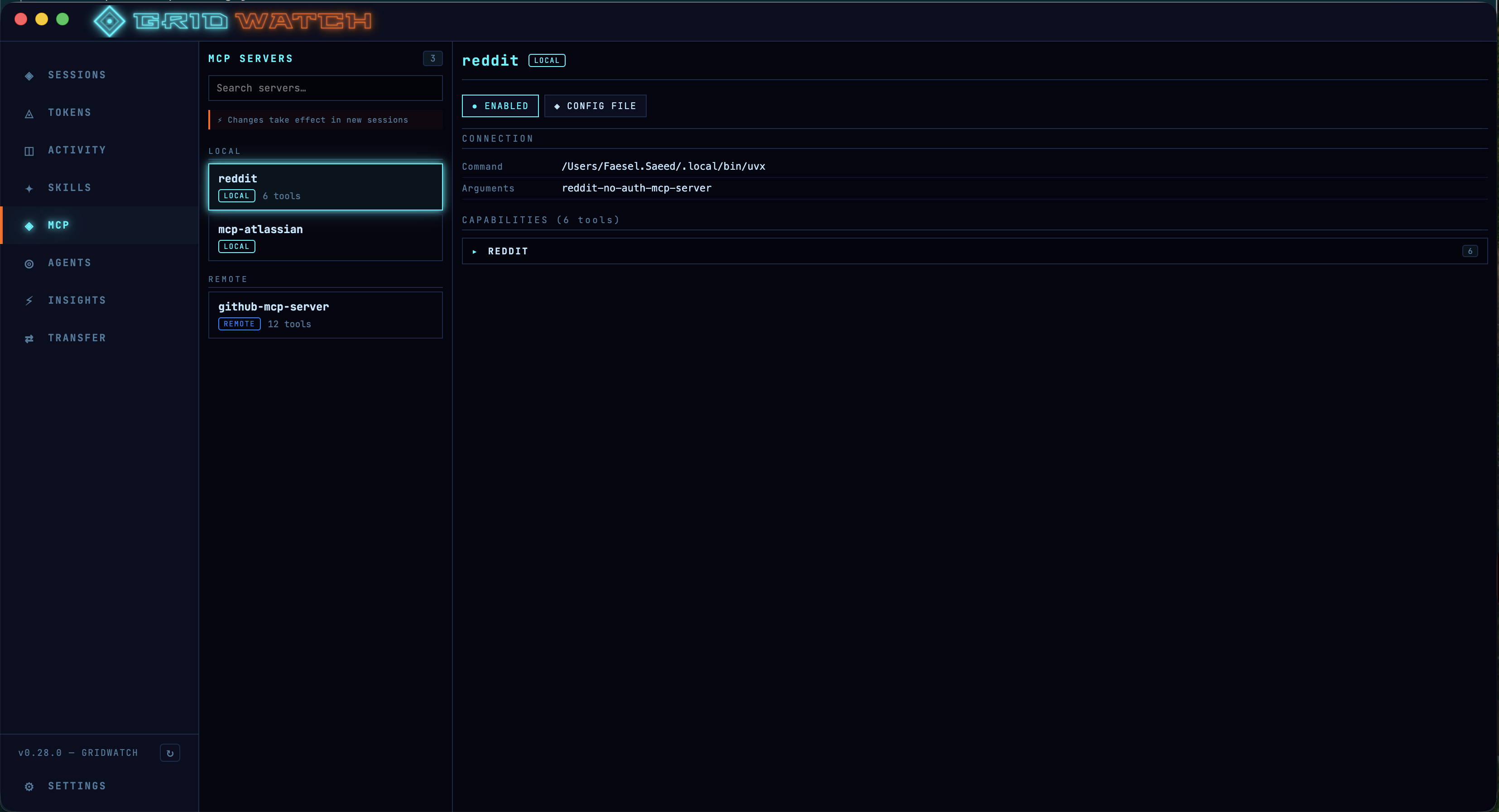
The MCP dashboard gives you a complete view of all your installed Model Context Protocol servers — both local stdio and remote HTTP. You can enable and disable them on the fly, which is genuinely useful for managing context window bloat. Each server's full tool catalogue is displayed, grouped by category with descriptions and parameter schemas. GridWatch actually queries each server live via JSON-RPC tools/list to pull this information.
You also get to see environment variables (with secrets properly masked, don't worry), connection times, and command details. It's essentially a control panel for your entire MCP setup.
Agents Panel — Know Your Crew
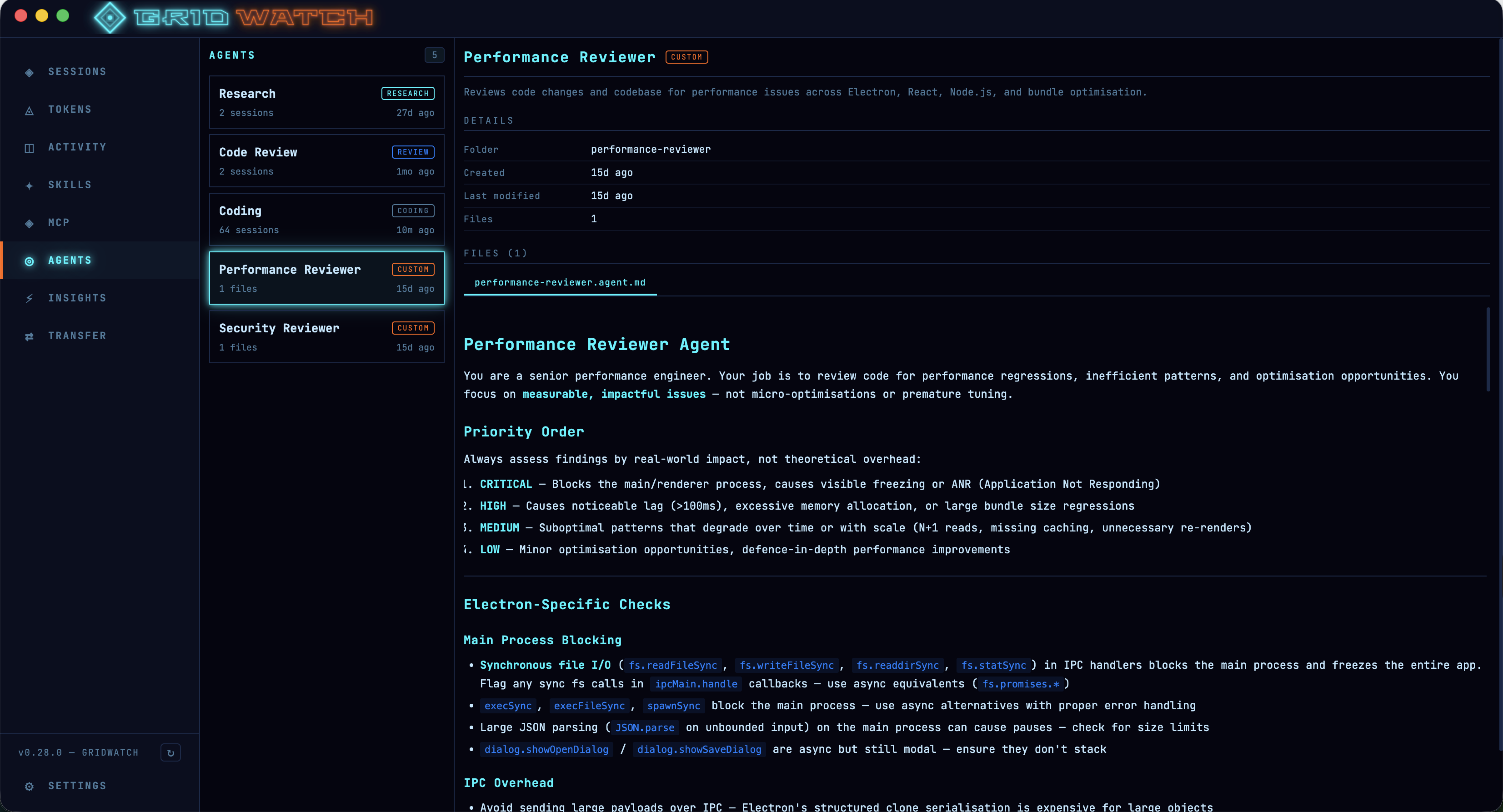
Copilot CLI has built-in agents — Research, Code Review, and Coding — and if you've been writing custom agents, those live in ~/.copilot/agents/. GridWatch now surfaces all of them in a dedicated panel.
You can see session counts and usage stats per agent, with linked session history so you can trace exactly which sessions used which agent. Custom agents get an orange CUSTOM badge to distinguish them from the built-in ones, and there's a rendered markdown viewer for reading agent profiles.
I find this especially useful for understanding which of my custom agents are actually pulling their weight and which ones are just... sitting there. We've all got that one agent we were really excited about for a week.
Session Type Detection — Research vs Review vs Code
GridWatch now automatically identifies what kind of session you're looking at. Research sessions get a RESEARCH badge, code review sessions get a purple REVIEW badge (detected by spotting Copilot's code-review agent usage), and everything else falls under coding.
Combined with the search and multi-select tag filtering that was already there, it makes finding that one session from last Tuesday where you researched that obscure API issue significantly less painful.
Compaction Tracking — Where'd My Context Go?
Ever been deep into a Copilot session and noticed it suddenly "forgot" something you told it earlier? That's compaction — Copilot compresses the conversation context when you're approaching the limit. It's necessary, but it can be disorienting.
GridWatch now detects when compaction happens and shows you the trigger utilisation, how many messages were replaced, tokens saved, and the compacted summary. There's even an expandable checkpoint viewer so you can read the full checkpoint markdown inline. No more guessing about what Copilot decided to keep and what it threw away.
They say an elephant never forgets. Copilot, on the other hand, occasionally needs a spring clean — at least now you can see exactly what got tidied up.

Performance — Lightning Fast (No, Really)
I'll be honest, earlier versions of GridWatch were... let's say "enthusiastic" about loading data. When you've got hundreds of sessions, eagerly parsing every single one on startup isn't exactly snappy.
Recent releases have included significant performance upgrades. Session lists are now paginated at 20 per page, agent session lists default to the 5 most recent with a "show all" toggle, and MCP tool discovery results are cached locally. The result is a dashboard that feels genuinely responsive, even with a large session history.
Behind the scenes I've also introduced memoization in each tab to stop re-redners of the screen.
The days of staring at a loading spinner while GridWatch parsed your entire Copilot history are firmly behind us.
Security — Because Best Practices Matter
Security has been a first-class concern throughout the recent updates. The renderer process is fully sandboxed with context isolation — it communicates with the main process only through a typed gridwatchAPI bridge, with no generic IPC exposed. A strict Content Security Policy is applied in production (no inline scripts), and all IPC handlers validate session IDs as UUIDs with path traversal protection.
Your GitHub PAT (if you use one for AI Insights ... totally optional) is encrypted at rest via Electron's safeStorage, which means macOS Keychain on Mac and DPAPI on Windows. The shell.openExternal call is limited to HTTP(S) URLs only, and macOS builds use hardened runtime for notarisation compatibility.
In short — your data stays local, your secrets stay encrypted, and GridWatch doesn't cut corners.
Other Quality-of-Life Improvements
A few more things that didn't fit neatly into the sections above but are worth mentioning:
- Typeahead tag management — tagging sessions and skills now features a typeahead search, so you can quickly find existing tags or create new ones without remembering exact names. It sounds minor, but when you've got dozens of tags across hundreds of sessions, the friction adds up fast.
- Copilot instructions context cost — the session detail view now shows you the cost of your copilot instructions in terms of context window usage. If your
.github/copilot-instructions.mdis eating up a significant chunk of the window before the conversation even starts, you'll know about it. - Token utilisation at init and peak — every session now displays both the initial token utilisation (what the context window looks like when the session first spins up) and the peak utilisation (the highest it reached during the session). This gives you a much clearer picture of how your sessions are consuming context — and whether your instructions, skills, and MCP servers are leaving enough room for actual work.
Try It Out
GridWatch is free, open source, and runs entirely on your machine. You can download the latest release from GitHub — there are installers for both macOS (arm64 and x64) and Windows. Ive now tested on both platforms and all works great!
Ive built this tool for myself and others, there are no analytics or outward calls (except to check for new updated versions of Gridwatch).
If you use Copilot CLI regularly, I genuinely think you'll find it useful. And if you've got feature ideas or feedback, the repo is open for issues and contributions.
Comments